Say hello to FontLab 7.2
FontLab 7.2 is a free update with 120 new or improved features. The headline: interpolation now runs 30× faster. New tools include Rotate, Scale, and Slant; an adaptive freeform grid with Suggest Distance; variable and attached components; visual OpenType feature proofing; and Microsoft VOLT integration. Existing FontLab 7 users get it free; FontLab VI users can upgrade for $99.
FontLab 7.2 brings 120 new or improved features:
- New Rotate, Scale and Slant tools
- Adaptive freeform grid with Suggest Distance
- Per-font rounded or fractional coordinates
- Flexible dynamic instances and 30× faster interpolation
- Attached and variable components
- Visual proofing and better editing of features
- Microsoft VOLT integration
- Font window filtering by color flag and glyph name suffix
- Better UFO 3 and .glyphs 2 and 3 interchange
- 80 fixes
FontLab 7.2 is free for existing FontLab 7 users, and $99 for FontLab VI users. If you already have FontLab 7, use Preferences › General › Check now to update. If you don’t have FontLab 7 yet, get a fully-functional 30-day trial from our website.
See detailed FontLab 7.2 release notes
30× faster interpolation
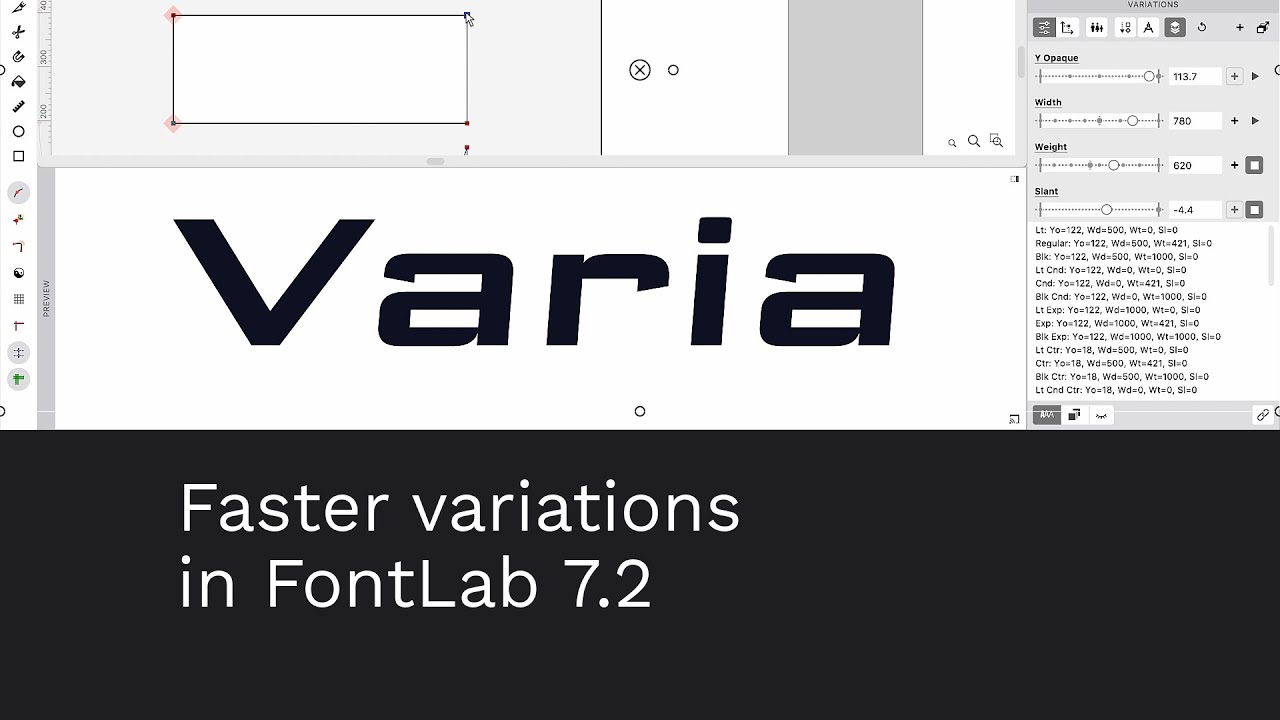
Interpolation works 30× faster than in previous versions, so you can preview variation animation in the Preview panel and Glyph window. In the Preview panel, you can also preview interpolation steps between any two instances.
Dynamic instance layer
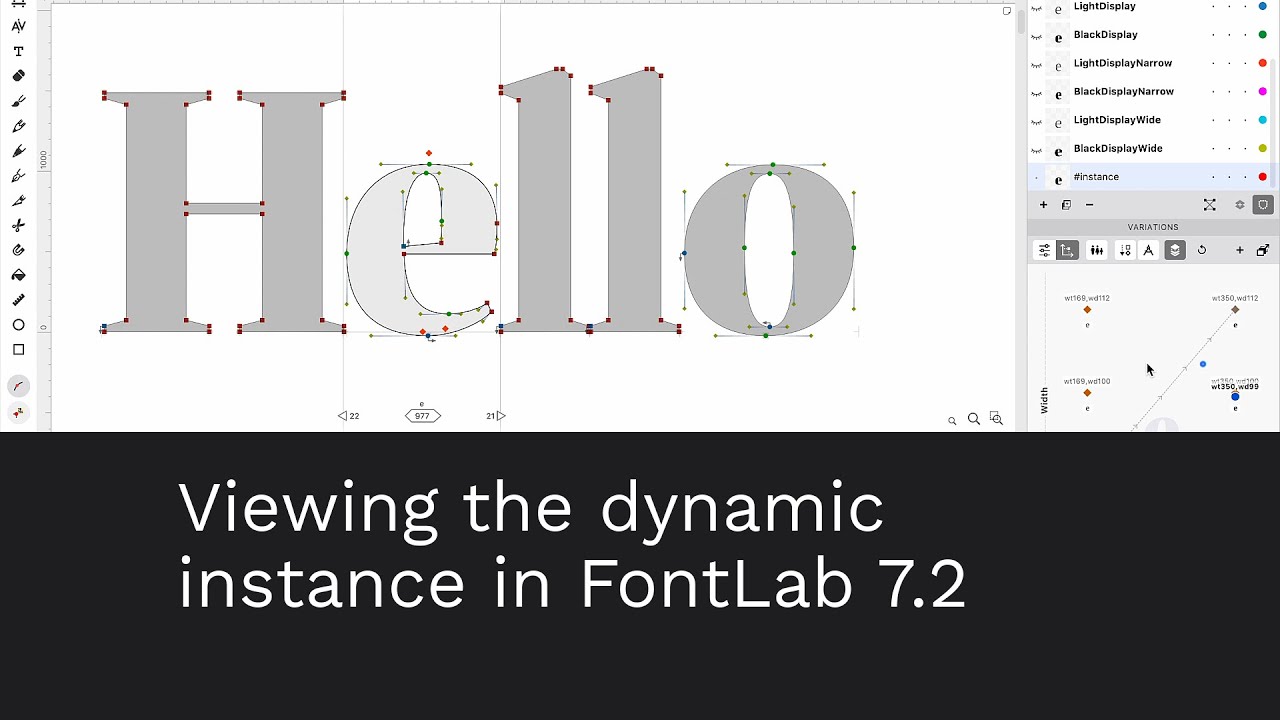
If Preferences › Variations › Show instance layer is on, the Layers & Masters panel shows an instance layer in all variable glyphs, corresponding to the dynamic instance selected in the Variations panel.
In the Font window, make the instance layer current, then choose a dynamic instance in the Variations panel to see that instance in all glyph cells.
In the Glyph window, making the instance layer current and selecting a dynamic instance lets you see the detailed view in the Glyph window. Use the Play buttons to animate the variations along the axes.
Variable components
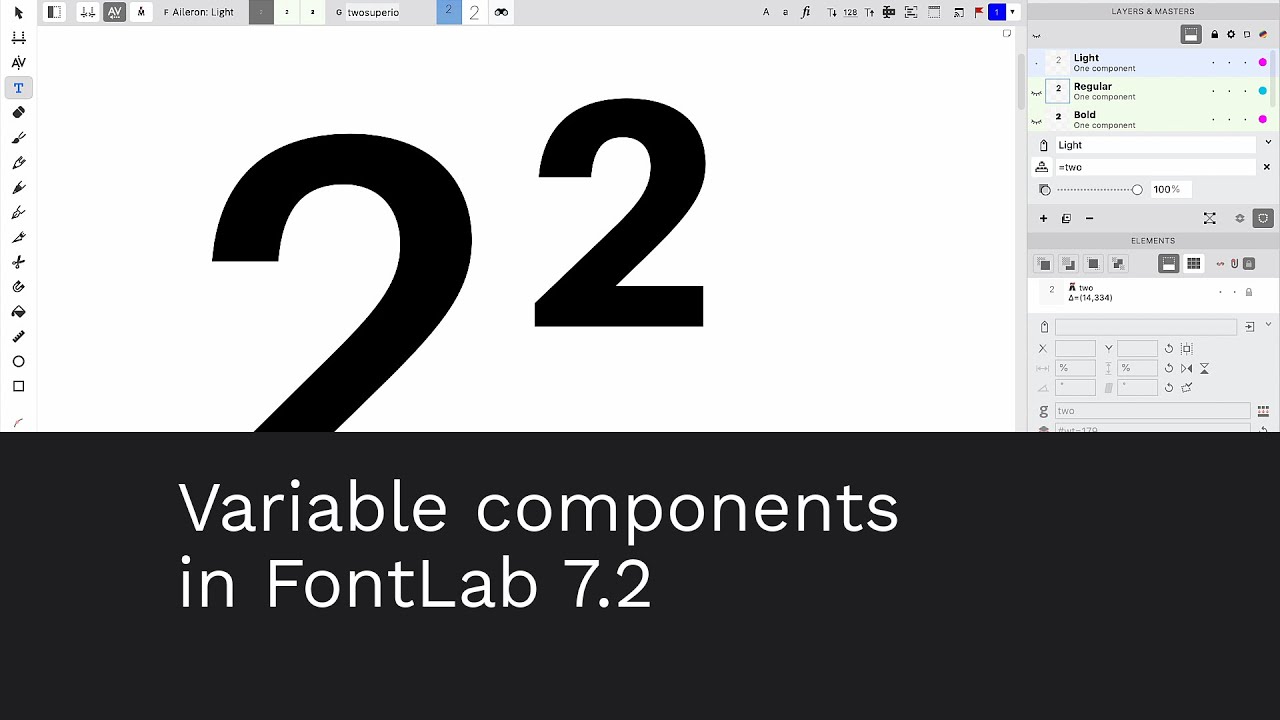
A component in FontLab can point to a glyph in a different layer, or to a dynamically interpolated instance. Open the Elements panel, turn on Show/hide element properties, and click Expand properties (^) to see the Base layer name field. Enter a different layer name there, or click Select component instance to open a widget with variation sliders.
Attached components
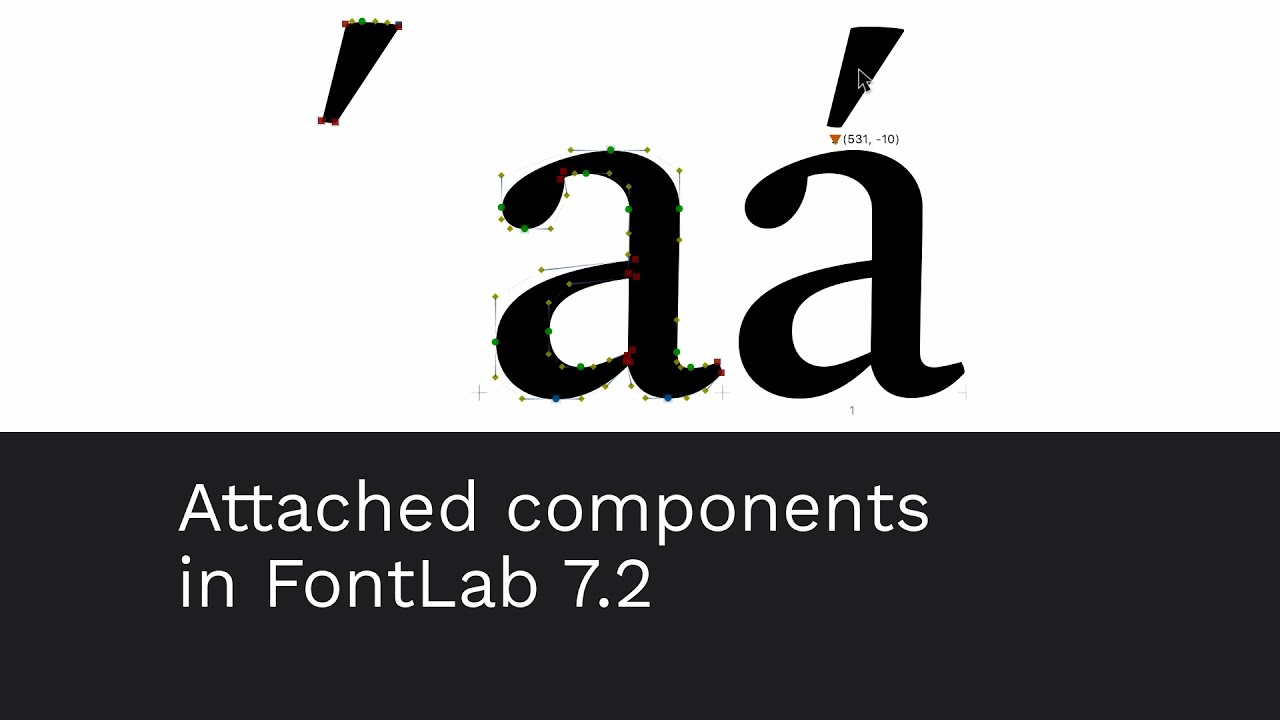
An attached component automatically snaps to the position determined by corresponding anchors. You cannot manually move an attached component, but you can scale, rotate, slant, or interpolate it. To move it, move the anchors that determine its position.
Attached components give you anchor-based placement while keeping full flexibility over metrics, and allow mixing contours with components. To attach a component, select it in the Glyph window and turn on Element › Attached, or toggle the paper-clip icon in the Glyph window property bar.
Suggest distance
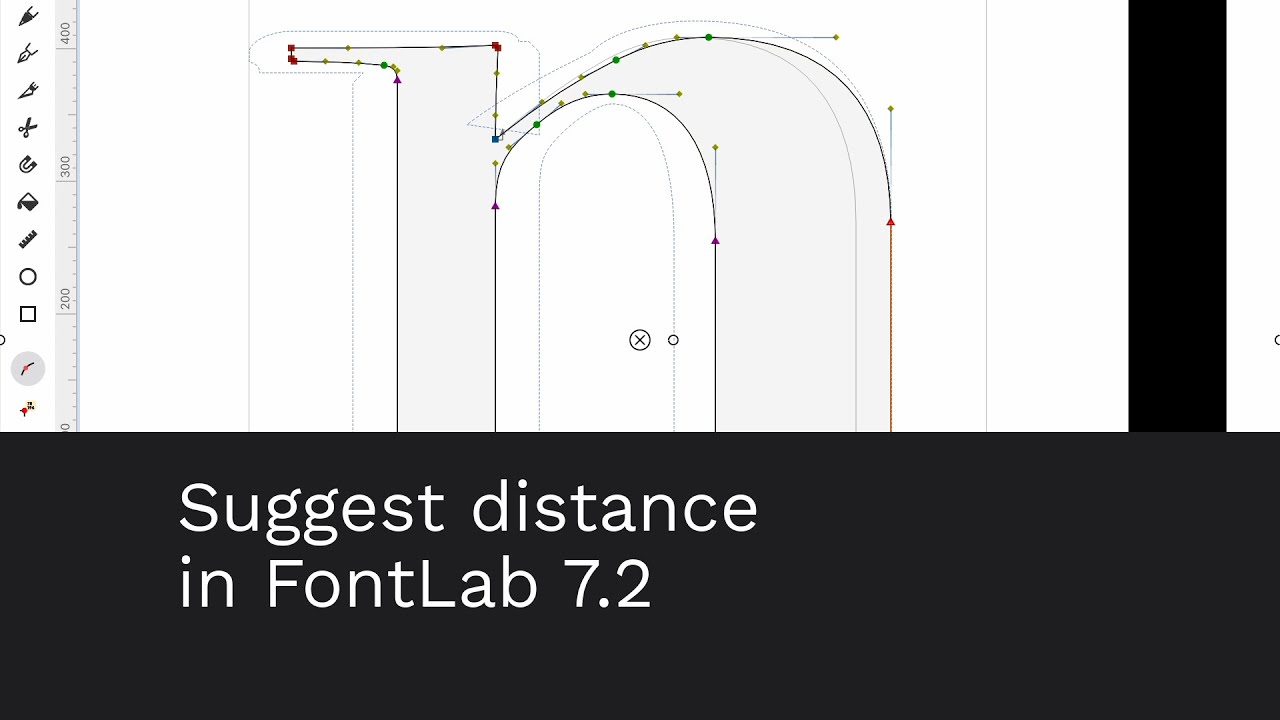
When View › Suggest › Distance is on and you drag a node, handle, selection, or anchor, FontLab draws a temporary suggested outline at the distance defined in Font Info › Other Values › Contour properties › Suggest distance — a freeform grid that adapts to your current drawing.
You can define separate horizontal and vertical distances per master. Use Suggest Distance to position anchors at a specified distance from existing contours, or to transform an existing drawing.
Rotate, scale and slant tools
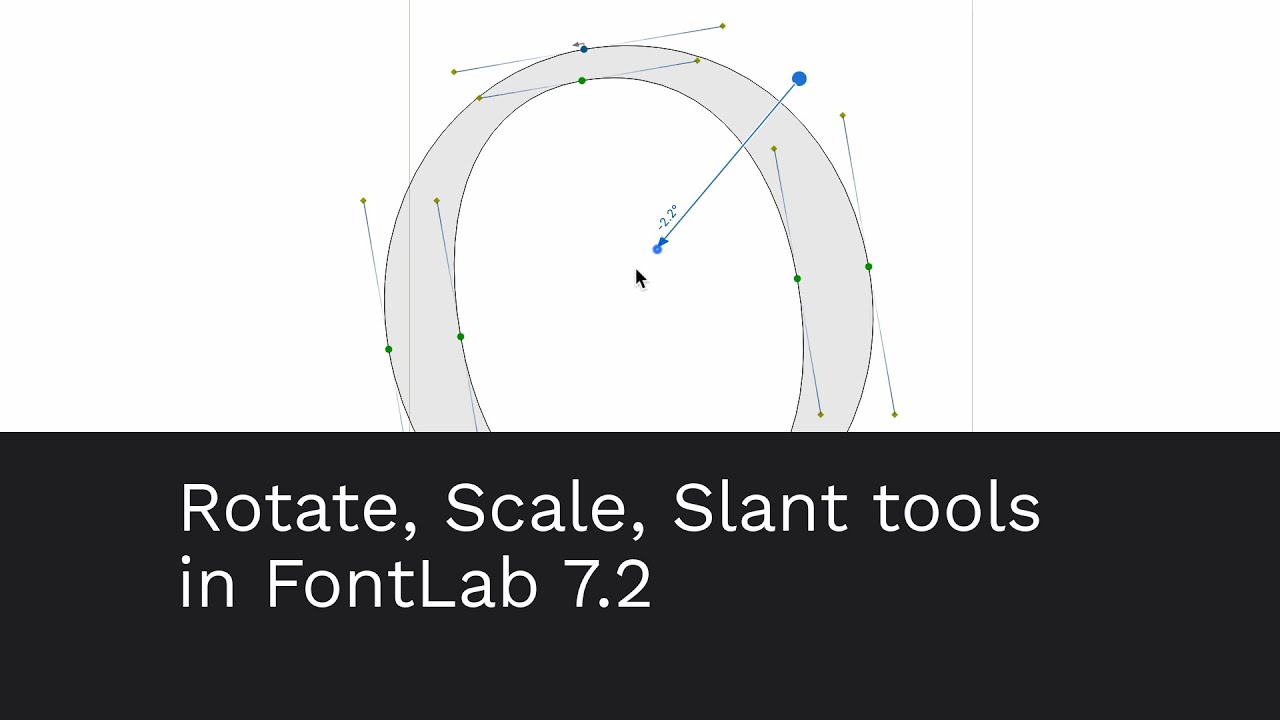
The quick transform tools — Rotate, Scale, and Slant — have been revamped. They work better and are accessible from the toolbar.
Font window bookmarks
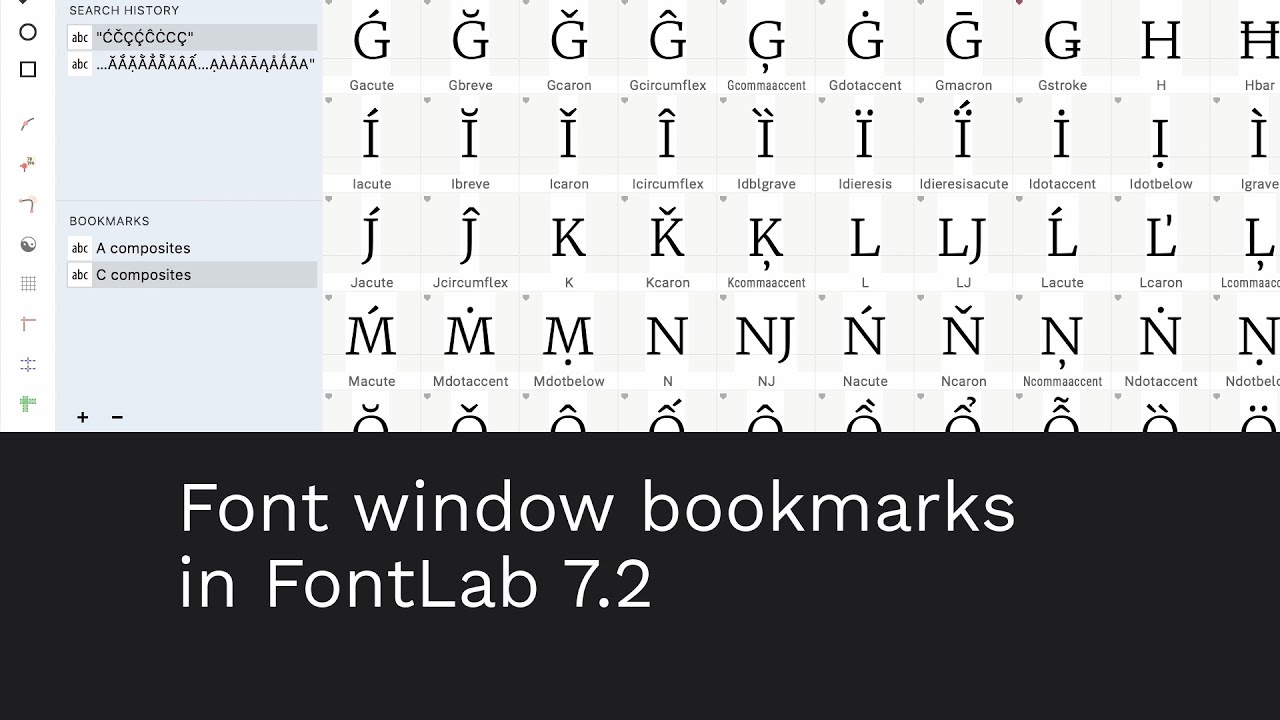
Use the Font window search box to find glyphs by name, Unicode character name, script, codepoint, Unicode range, codepage, or encoding. Drag a remembered search to the Bookmarks section to reuse the filter. In FontLab 7.2, you can double-click a bookmarked search and give it a custom name.
Glyph window wrapping
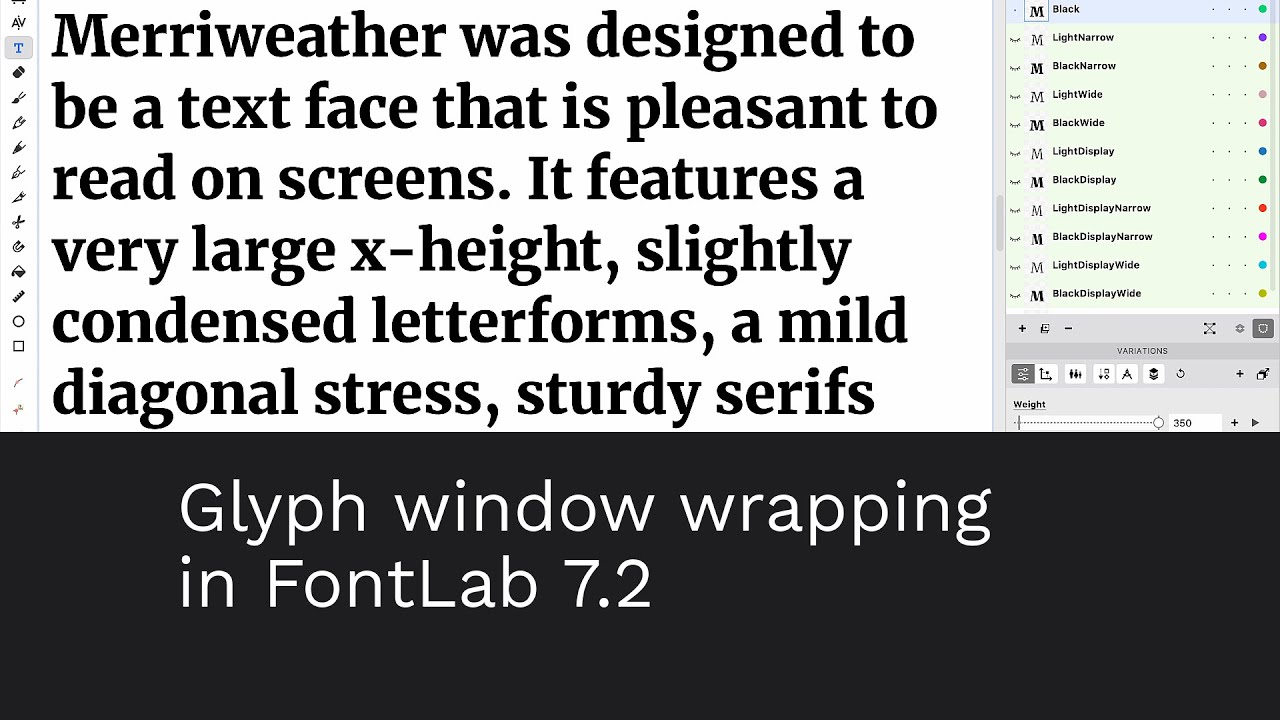
The Glyph window is single-line by default. Make manual wraps with Enter, or switch to Auto wrap. When you apply a text wrap in the Glyph window, you can switch masters and instances without reflowing longer texts.
Walkthrough
A 31-minute guided tour by Adam Twardoch covers each area in turn — drawing, variable fonts, OpenType features, export — with commentary on why each design decision was made. The fastest path from “I saw the release notes” to “I understand what actually changed.”
For the version-by-version detail, use the release notes below.