FontLab 7.2.0.7644 and macOS 12.3 Monterey

Apple’s macOS 12.3 Monterey update broke all previous versions of FontLab 7 by removing the system Python 2.7 that FontLab depended on. FontLab 7.2.0.7644 is a free patch that restores compatibility — macOS 12.3 users need to install a bundled Python 2.7 package alongside the app. A buggy intermediate build (7650) that made glyph fills transparent was withdrawn; 7644 does not have that problem.
Note: If you open a font and all glyphs unintentionally have a transparent or colored fill, scroll to the end of this post for instructions on how to fix it.
Download and install FontLab 7.2.0.7644 on macOS
macOS 12.3, released in March 2022, broke compatibility with numerous apps from many vendors — including all previous versions of FontLab 7.
Before you update macOS Monterey to 12.3, open FontLab and choose FontLab 7 › Check for Updates. Download and install the FontLab 7 update, then run FontLab 7. If you then see a notification about build 7650 or 7651, click Skip This Version, then go to Preferences › General and turn off Get beta versions.
If you have already updated to macOS 12.3 and FontLab crashes on launch, download and install the update below.
Download FontLab 7.2.0.7644 for macOS (all versions)
The download contains two editions of FontLab 7: one for macOS 12.3 or newer, one for macOS 12.2 or older. To check your macOS version, click the Apple menu and choose About This Mac.
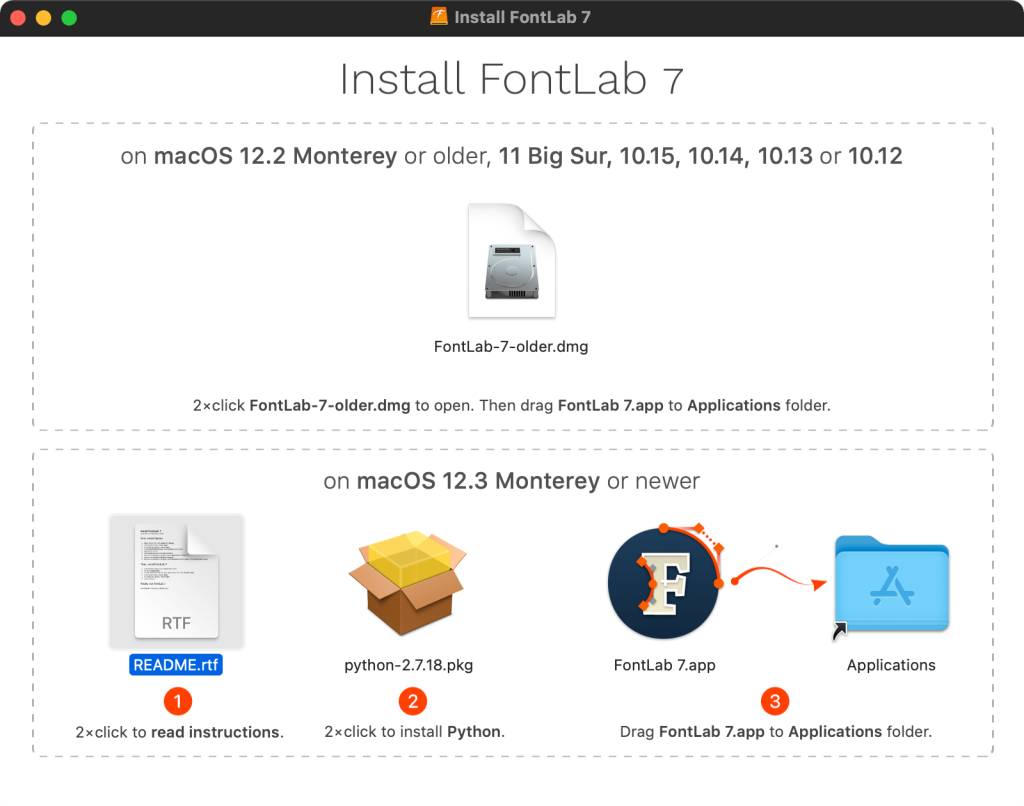
Install on macOS 12.2 Monterey or older
If you use macOS Monterey 12.2 or older, macOS 11 Big Sur, macOS 10.15 Catalina, 10.14 Mojave, 10.13 High Sierra, or 10.12 Sierra:
- Download FontLab 7.2.0.7644
- Double-click FontLab-7-Mac-Install-7644.dmg and accept the license
- Double-click FontLab-7-older.dmg and accept the license
- Drag FontLab 7.app to your /Applications folder
- Run FontLab 7
- If you see the update notification for build 7651, click Skip This Version
Install on macOS 12.3 Monterey or newer
- Download FontLab 7.2.0.7644
- Double-click FontLab-7-Mac-Install-7644.dmg and accept the license
- Double-click README and follow the instructions: first double-click the bundled python-2.7.18.pkg to install Python, then drag FontLab 7 to your /Applications folder
- Run FontLab 7
- If you see the update notification for build 7651, click Skip This Version
Note: this edition requires a separate Python 2.7 installation, provided in the DMG. You will need your administrator password to install it.
Download and install FontLab 7.2.0.7644 on Windows
Download FontLab 7.2.0.7644 for Windows (64-bit)
Download FontLab 7.2.0.7644 for Windows (32-bit)
Install on Windows 7–11
- Download the edition appropriate for your Windows version (64-bit or 32-bit; if unsure, use 64-bit)
- Double-click the downloaded .exe file and install the app
- Run FontLab 7
- If you see the update notification for build 7651, click Skip This Version
Fix the transparent fill problem
If you open a font after installing FontLab 7.2.0.7644 and glyphs unintentionally have a transparent or colored fill:
- Open the Color panel via View › Panels › Color
- Type
blackinto the color name field at the bottom - In the Font window, choose Edit › Select All
- In the Layers & Masters panel, choose your first master
- In the Color panel, click Apply
- Choose the next master, click Apply in the Color panel, and repeat for all masters
- Save the font as a new VFC