DTL OTMaster 7.9 available now

DTL OTMaster 7.9 adds support for variable OpenType fonts. This includes the fvar, gvar, CFF2, STAT, HVAR, and MVAR tables. It includes a new Proofing Tool for printing and exporting PDF specimens, and a Side-by-Side Viewer that shows variation instances.
Available for macOS, Windows, and Linux. A full license is US$228. Upgrades from previous versions are US$57.
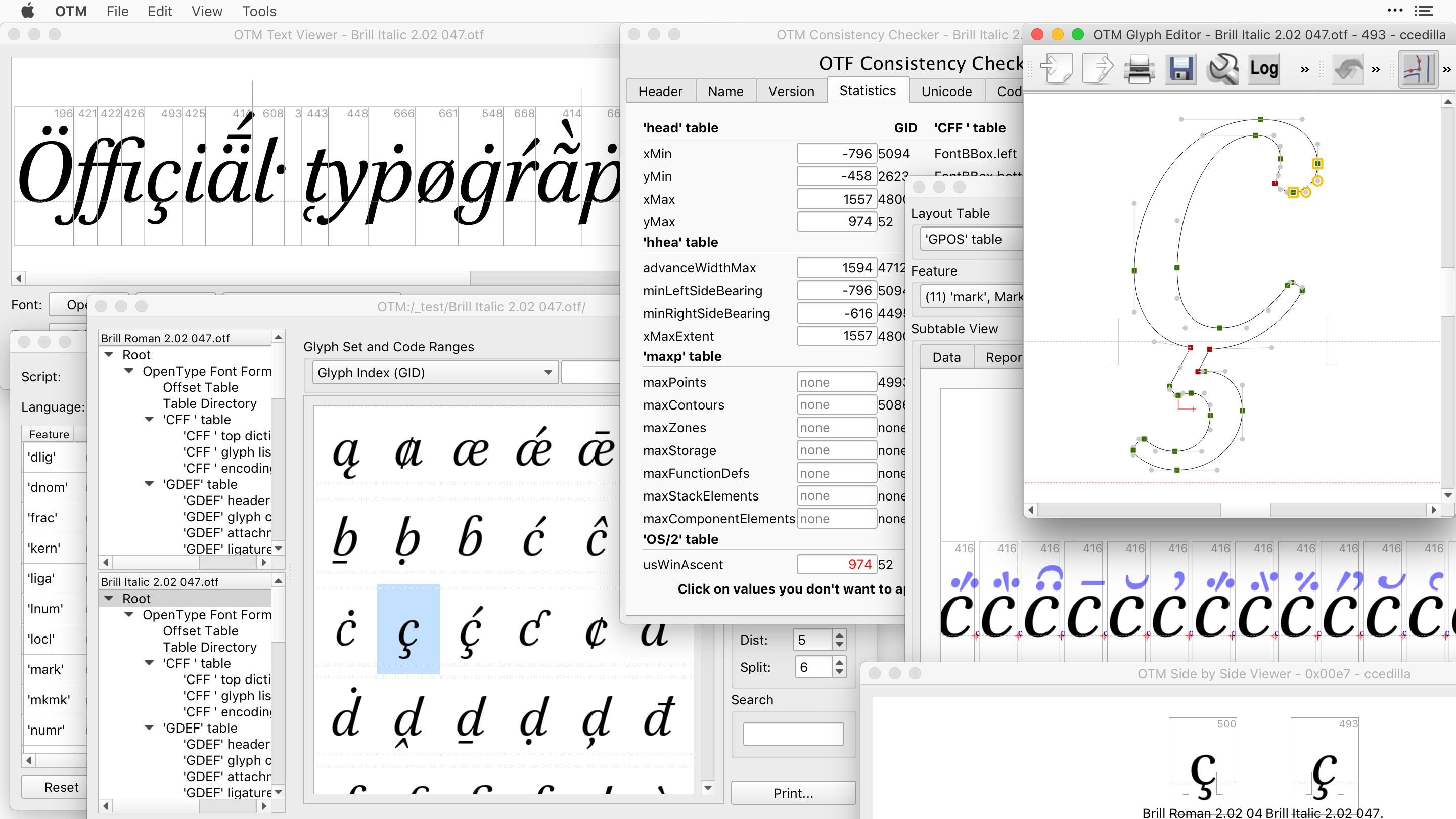
OTMaster lets you inspect, troubleshoot, and modify OpenType and TrueType fonts without destructive round-tripping. It supports all formats, including variable fonts, color fonts, TTC collections, WOFF2 web fonts, and CID-keyed OTF fonts.
You can view and edit OpenType Layout features, work with low-level font tables, and fix bugs. The Glyph Editor lets you import a monochrome EPS or SVG drawing and add it as a new glyph or replace an existing one.
Visit the DTL OTMaster web page for more info, or buy or upgrade now in the FontLab store. Academic pricing is available at $114 (proof of academic status required).
OTMaster pairs well with FontLab VI. Draw, space, kern, and hint in FontLab. Test and tweak in OTMaster.
New in OTMaster 7.9
- OpenType Font Variations support: A new Font Variation Viewer and instances editor. Support for
fvar,gvar,CFF2,STAT,HVAR,MVAR, andmetatables. Variation instances and isomorphic compatibility in the Side-by-Side Viewer. Variation support in the Glyph Viewer, Text Viewer, and Glyph Editor. - Proofing Tool: Print or export to PDF all or selected glyphs of the current or all open fonts, or specimens with custom text. Show, hide, or customize outlines, points, glyph and font metrics, labels, and other details.
Improved in OTMaster 7.9
- Side-by-Side Viewer: Print, show variation instances, filter to show only non-interpolable glyphs or glyphs that differ in width.
- Table Comparator: Make tables consistent across a family, enhance, or remove entries.
- GPOS/GSUB Table Viewer: When editing mark attachment visually, hold Shift+drag to move marks horizontally, Shift+Alt to move them vertically.
- OpenType tables: Support for
OS/2table versions 1 to 5. Auto-calculate new fields when upgrading table version. Show X, Y positions inglyftable comments. - Consistency Checker: Added a
use_typo_metricscheckbox. - Import/Export: Export fonts to UFO format. Export instances from variable fonts to URW QQ or BE files. Export AFM with original UPM.
- Text Viewer: Edit glyph metrics (advance width). Easier text handling.
- Glyph Editor: Point List panel. Tabs moved from bottom to top. Reset to maximum em-square. Antialiasing. Center vertically in em square. Edit glyph metrics. Point numbering (no virtual anchor points in TT fonts). Marker Size and Fill Anchor Points in Preferences.
A word from DTL
“Initially the idea was that version 8 would be the next retail version. However, the additional OTF to TTF conversion, the export of the UFO 3 format, and the development of the updated manual takes a bit longer than expected. In the past months we received quite a number of requests for a new OTM version, so we have decided to release version 7.9, even though this version comes without the aforementioned functionality and without an updated manual. Owners of version 7.9 will be able to upgrade to version 8 (scheduled for the first half of 2019) for only €25.”
System requirements
Windows
- OTMaster 7.9 for Windows is a 32-bit app that runs on Windows 7 and newer, including Windows 10 (32-bit or 64-bit).
- To install: Unzip the downloaded file. Copy the DTL OTMaster 7.9 folder into C:\Program Files. Navigate to C:\Program Files\DTL OTMaster 7.9\Program Files. Right-click otm.exe and choose Send To > Desktop (create shortcut).
- To run: Double-click otm or otm.exe Shortcut on your Desktop.
macOS
- OTMaster 7.9 for Mac is a 64-bit app that runs on Mac OS X 10.10 Yosemite or newer, including macOS 10.14 Mojave.
- To install: Double-click the downloaded DMG. Drag DTL OTMaster 7.9.app into your /Applications folder.
- To run: The first time, navigate to the Applications folder, Ctrl+click DTL OTMaster 7.9.app, and choose Open. Click Open. After that, just double-click the app icon.